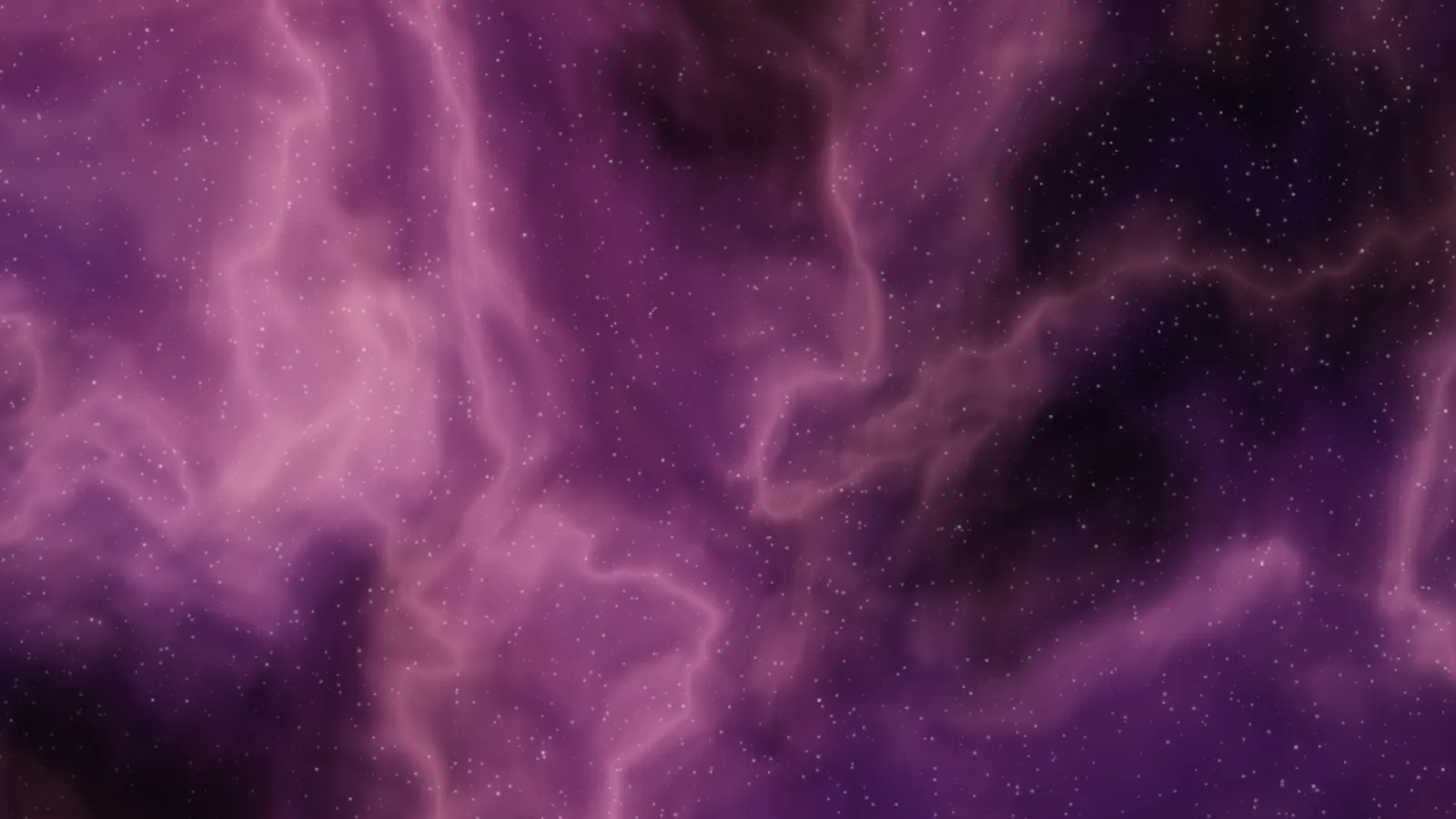
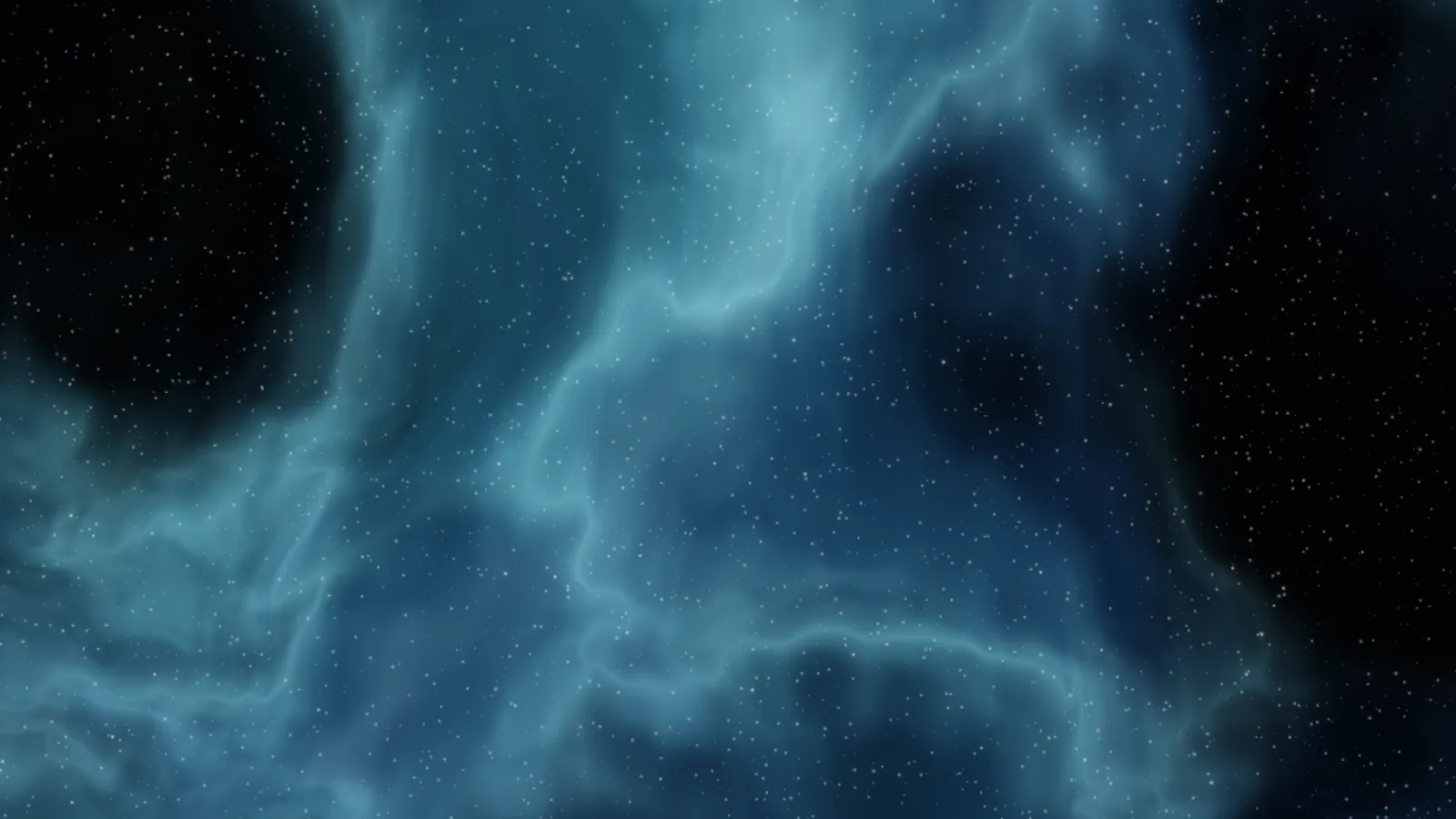
Drifting through a cloud of glowing gas: two colours of emission, bright filaments, dark dust lanes, and stars sliding past at three depths so the drift reads as motion through space rather than a picture panning. The whole thing is one fragment shader — no textures, no offscreen passes, no assets — and it is inspired by the look of deep-sky photographs rather than modelled on any real object.
RoseThe default: magenta gas with pale filaments.TealTeal gas around a dark void.
Gas with structure
A soft glowing body comes from gently warped noise; thin bright filaments from ridged noise along the same warp; two emission colours drift through each other, and dark dust lanes eat into the glow. The view drifts and turns so slowly you only notice it after looking away.
If you self-host
Self-hosted, read-only container. Nebula makes no outbound request at all — the shader is drawn at 75% of the capped pixel ratio and only ever at a throttled 30 frames a second, whatever the display’s native refresh rate.
What it wants
A palette — rose, teal, or ember — and, if you like, how dense the gas is and how bright the stars are.
Setup
Put Nebula on a screen.
A browser is genuinely enough — the Mac app and Fully Kiosk below are conveniences, not requirements.
Any screen
nothing to install
Open the display in whatever browser the screen already has.
Go full screen: F11 on Windows and Linux, ⌃⌘F on macOS.
Or give it a browser of its own, which is what a dedicated panel wants: chrome --kiosk <url> — on macOS, open -a "Google Chrome" --args --kiosk <url>.
Turn off display sleep in the machine’s power settings and walk away.
Works on anything with a browser
Mac desktop
LivingKiosk app
Get the app and its install steps at livingkiosk.com/mac. It isn’t notarized yet, so macOS asks you to approve it once.
Menu bar → Library… and pick a display for each screen.
Configure… on any screen for its reload schedule, dim, and saved configs.
Displays are ordinary web pages, so anything that can hold one open works: a Raspberry Pi on a monitor, a retired iPad, a Fire tablet, the browser built into a TV.
Configuration
URL parameters.
Everything below, plus a live preview and a URL builder that writes the link for you, is at nebula.livingkiosk.com/setup.
Parameter
Default
Meaning
palette
rose
teal or ember. The three emission colours: faint outer gas, main body, hot core.
density
1
How much gas there is, 0.3–2. Clamped, not rejected.
stars
1
How bright the stars are at every depth, 0–2. 0 removes them.
speed
1
A multiplier on the drift and the twinkle, 0.2–3. Clamped, not rejected.