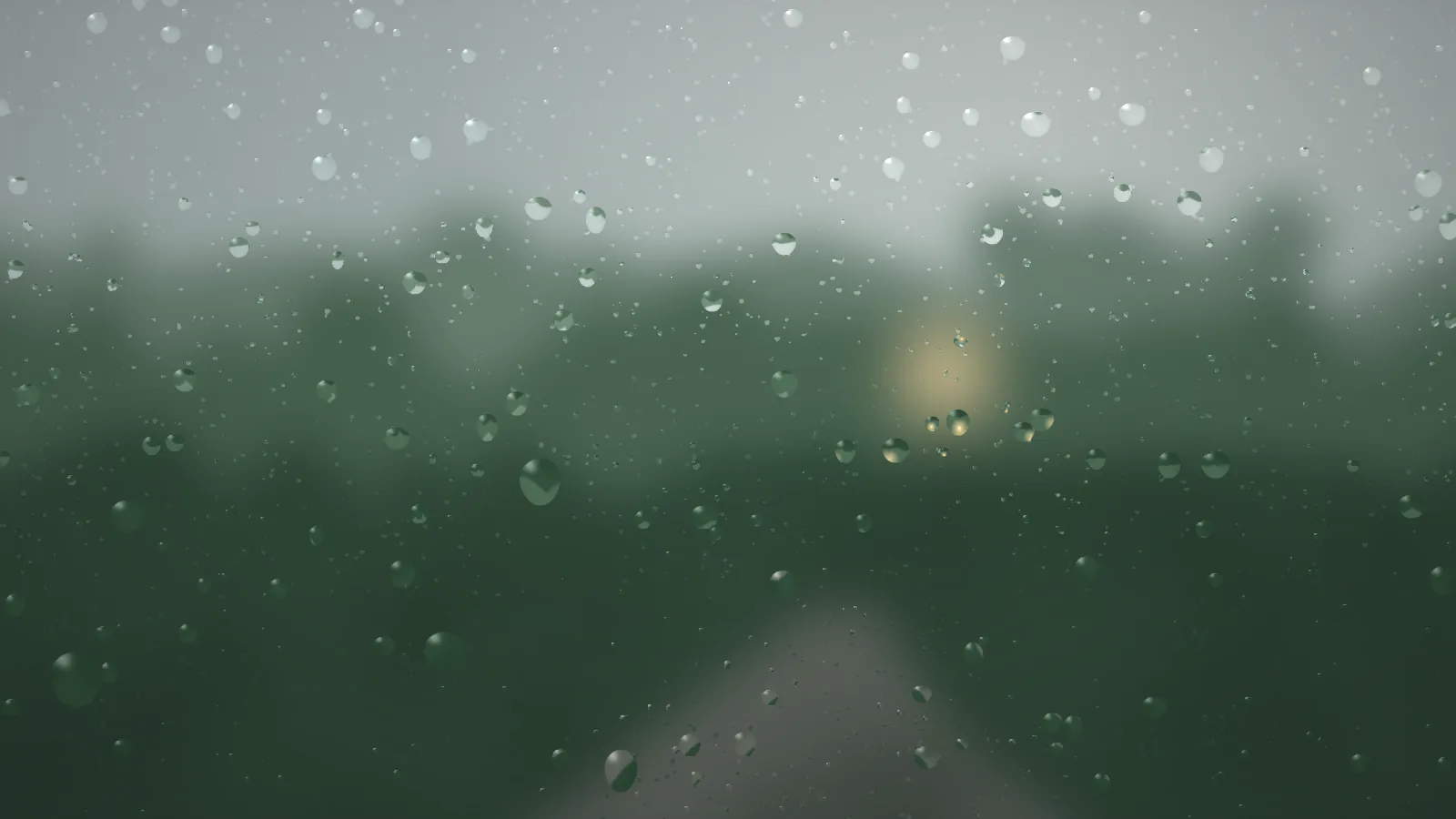
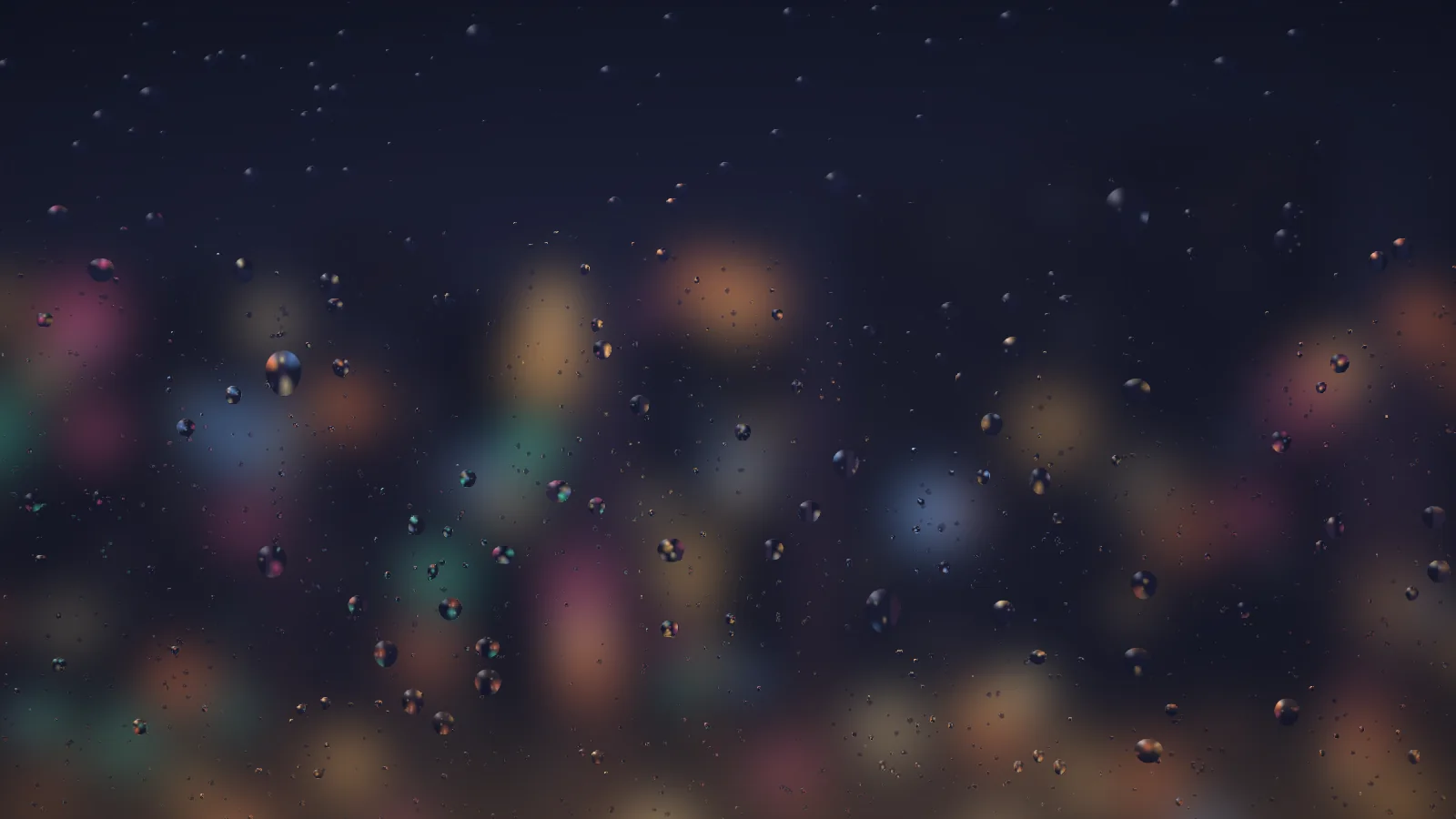
Rain on a window, close enough that every drop is a tiny lens. A water map stores each drop’s surface normal and one shader bends a sharp view of the world outside through it, so a drop shows that world shifted and a little brighter while the glass between the drops shows it fogged. Heavy drops run, stall, merge, and leave trails; four scenes are painted in the browser to look out on, with no image files behind any of them.
ForestThe default: a grey afternoon at the edge of a wood.CityA street at night, all blurred lights.
How the drops behave
Heavy drops overcome surface tension, lurch and stall, and shed little beads as trails that evaporate. When two touch, the larger swallows the smaller and area is conserved. A running drop wipes a clear path through the mist behind it.
If you self-host
Self-hosted, read-only container. Pane makes no outbound request at all — the scenery is painted procedurally in the browser and every frame is computed there, with the water map kept at half resolution and the frame rate capped at 30.
What it wants
A scene to look out on — forest, city, dusk, or field — and how hard it is raining. Sizes are authored against a 900-pixel short side and scaled from the screen’s own, so the same URL works on a 16:9 panel or a portrait tablet.
Setup
Put Pane on a screen.
A browser is genuinely enough — the Mac app and Fully Kiosk below are conveniences, not requirements.
Any screen
nothing to install
Open the display in whatever browser the screen already has.
Go full screen: F11 on Windows and Linux, ⌃⌘F on macOS.
Or give it a browser of its own, which is what a dedicated panel wants: chrome --kiosk <url> — on macOS, open -a "Google Chrome" --args --kiosk <url>.
Turn off display sleep in the machine’s power settings and walk away.
Works on anything with a browser
Mac desktop
LivingKiosk app
Get the app and its install steps at livingkiosk.com/mac. It isn’t notarized yet, so macOS asks you to approve it once.
Menu bar → Library… and pick a display for each screen.
Configure… on any screen for its reload schedule, dim, and saved configs.
Displays are ordinary web pages, so anything that can hold one open works: a Raspberry Pi on a monitor, a retired iPad, a Fire tablet, the browser built into a TV.
Configuration
URL parameters.
Everything below, plus a live preview and a URL builder that writes the link for you, is at pane.livingkiosk.com/setup.
Parameter
Default
Meaning
scene
forest
city, dusk, or field. What is outside the window. Anything else falls back to forest.
rain
1
Intensity, 0.2–3: how quickly new drops land and how much fine mist gathers. Clamped, not rejected.
speed
1
A multiplier on how fast drops run, 0.3–2.
fog
0.35
Condensation on the glass, 0–1 — a pale veil over the blurred view, thicker toward the bottom. 0 is clear glass.
dim
0
Neutral black overlay, 0–0.8 (fleet-wide convention).
seed
—
Pins the starting arrangement — the scenery and the first drops.
Pane is open source under the MIT licence. Run it yourself with one command. The source opens to the public soon.