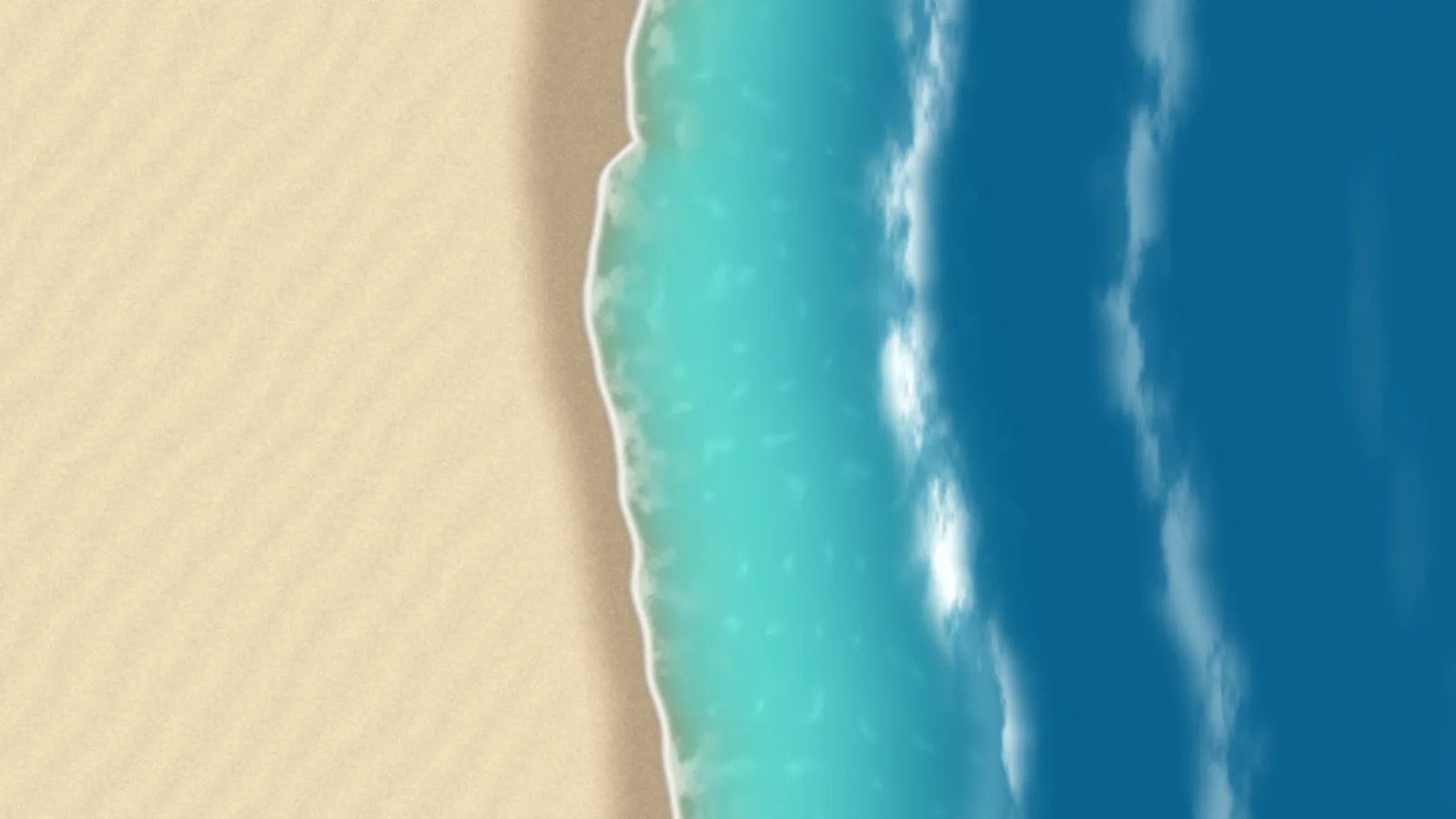
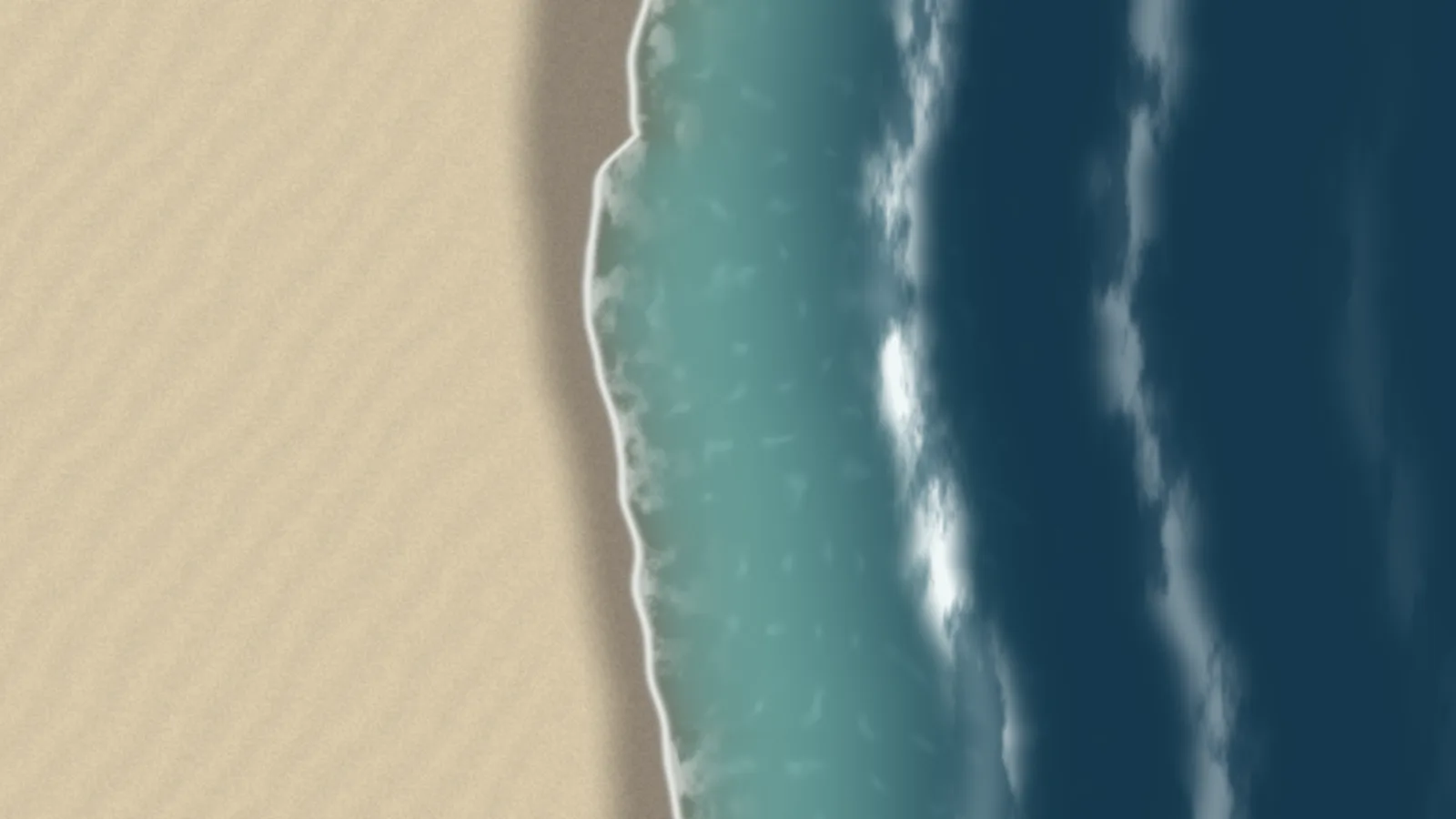
A beach from straight above: swell lines rolling in and breaking into lace, each wave running up the sand fast and draining back slow, leaving dark wet sand that glistens with the sky for a moment. Two wave trains overlap and arrive a little out of step along the shore, so no two stretches wash alike. It is one fragment shader, and the sea can lie on any side of the screen.
TropicalThe default: bright turquoise shallows over pale sand.TemperateThe same shore in darker, cooler water.
The swash of a real beach
A quick run up the sand, a long slide back, and dark wet sand left behind. The water is clear where it thins over the sand, turquoise in the shallows and deep blue further out, with a bright foam line on each leading edge.
If you self-host
Self-hosted, read-only container. Tide makes no outbound request at all — one shader, drawn at 80% of the capped pixel ratio and touched at most 30 times a second.
What it wants
A colour set — tropical, temperate, or dusk — and which edge of the screen the sea lies toward. That last one matters on a portrait panel or across a wall of monitors, where you choose which side the shoreline runs along.
Setup
Put Tide on a screen.
A browser is genuinely enough — the Mac app and Fully Kiosk below are conveniences, not requirements.
Any screen
nothing to install
Open the display in whatever browser the screen already has.
Go full screen: F11 on Windows and Linux, ⌃⌘F on macOS.
Or give it a browser of its own, which is what a dedicated panel wants: chrome --kiosk <url> — on macOS, open -a "Google Chrome" --args --kiosk <url>.
Turn off display sleep in the machine’s power settings and walk away.
Works on anything with a browser
Mac desktop
LivingKiosk app
Get the app and its install steps at livingkiosk.com/mac. It isn’t notarized yet, so macOS asks you to approve it once.
Menu bar → Library… and pick a display for each screen.
Configure… on any screen for its reload schedule, dim, and saved configs.
Displays are ordinary web pages, so anything that can hold one open works: a Raspberry Pi on a monitor, a retired iPad, a Fire tablet, the browser built into a TV.
Configuration
URL parameters.
Everything below, plus a live preview and a URL builder that writes the link for you, is at tide.livingkiosk.com/setup.
Parameter
Default
Meaning
water
tropical
temperate or dusk. The colour set for sand, water, foam, and sky.
sea
right
left, top, or bottom. Which edge of the screen the sea lies toward.
waves
1
How lively the surf is, 0.3–2: higher means waves arrive more often and run further up the sand. Clamped, not rejected.
speed
1
A multiplier on the pace of everything, 0.2–3. Clamped, not rejected.